App list*
Chapter 3 · Manual page 101
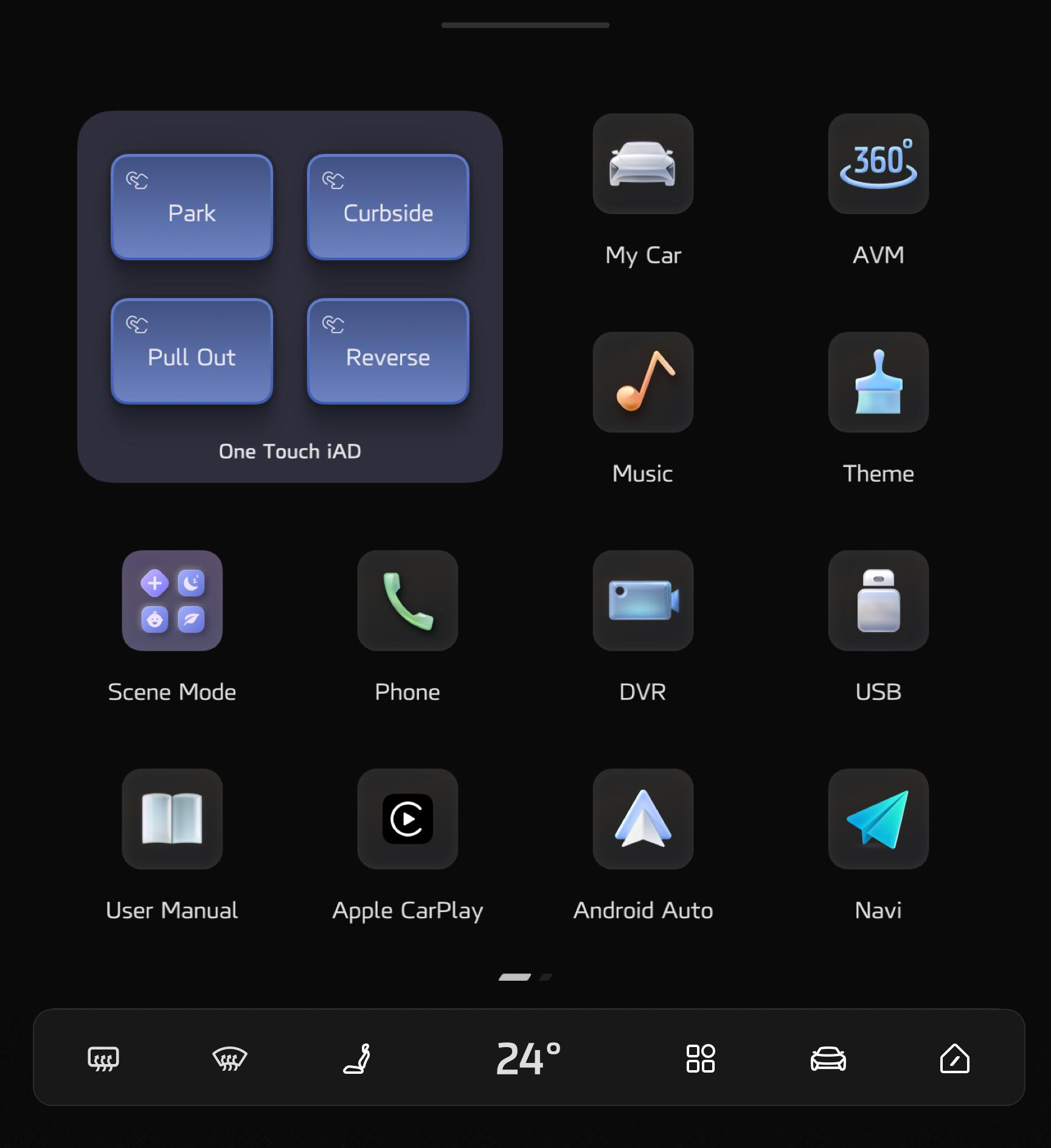 The app list includes: One Touch iAD, My Car, AVM, Music, Theme, Scene Mode, Phone, DVR, USB, User Manual, Apple Carplay, Android Auto, NaVi, Youtube, User, Maintenance, RescueCall, Weather, Amazon, Spotify, TikTok, BBC World Service* and TuneIn*.
Grab inwards with five fingers on the page of central screen to enter the app list; Swipe down with a single finger from the top horizontal line to exit the app list.
One Touch iAD Refer to “One Touch Park”,“One Touch Escape”,“One Touch Side” and “One Touch Reverse” in “Intelligent Drive System*”. My Car My Car includes: vehicle charging, discharge, energy consumption, notification centre and other related information; refer to “Charging” for details.
- Energy Consumption: Includes the energy consumption graph.
- Charging capacity setting: When the vehicle is not being charged, go to “My Car” > “Set” and drag the setting button to your desired setting. When the vehicle is being charged, tap the charging status under “3D vehicle model” to enter the charging page, and drag the setting button to your desired setting.
The charging capacity setting has three positions; the charging limit has the power-off memory function if the user has set the charging limit. If the traction battery capacity is higher than the charging limit, the vehicle cannot be charged.
- Discharge: AC discharge enables the power stored in the traction battery to be output through a special discharging device at a voltage of 220V and to be used by external electrical appliances. After inserting the discharging device, the user must enter the charging page and select “Discharge”.
The cut-off power of external discharge can be set by dragging the slider to the desired setting, and the minimum setting for power discharge is 20%.
It is not possible to charge the vehicle whilst a discharge device is connected.
- Settings: Include the range standard and available battery energy status.
The setting related interfaces are different depending on the configuration.
Surround view(AVM) The user can tap the surround view button to check the surroundings of the vehicle on the driver entertainment screen; refer to “360 Surround View” for details. The user can enter the Surround View Mode in the following ways: When the vehicle is powered on and the speed is below 10 mph (15 km/h), tap the Surround View button in the app list on the central screen; or shift into R gear to enter Surround View; or press the custom Surround View button on the steering wheel. The user can exit Surround View in the following ways: Tap the “X” button on the page or press the home button; or increase the speed to above 10 mph (15 km/h) while driving in D gear; Surround View automatically exits after shifting into P gear after 3 seconds; and also after automatic parking is completed.
Tap to enter “Settings > General > Custom Keys” on the central screen to set the custom Surround View button on the steering wheel.
When the vehicle is in R gear or the APA system is enabled, the Surround View cannot be turned off and the “X” button is hidden. Surround View cannot be turned off even by tapping the home button. The front view and rear view buttons are hidden, they can be displayed by tapping the top view area of the Surround View. If there is an obstacle approaching the vehicle, the vehicle will display the radar wall information at each location in white, yellow or red depending on the distance. Select the Settings button on the upper right of the top view of Surround View, and select the related setting item. For example, Surround View enabled at start-off, radar alarm tone, and Surround View transparent chassis.
Please use the Surround View function with caution while driving so as not to affect driving safety.
Music Tap to enter the Music function; refer to “Music” for details. Scene Mode The user is able to preset sub functions such as air conditioning, seat position, screen etc for various scenarios. These include Nap Mode, Pet Mode etc.. Nap mode: When the vehicle is in P gear and not in an automatic parking condition, the energy range is higher than 46 miles (70 km) or the vehicle is being charged, and the seat behind the driver seat is not occupied, the centre console will be locked, the seat will be adjusted to a comfortable angle, the windows will be closed, the notification audio will be muted, the air conditioning will be turned on, and the screens, sound, and atmosphere lamp will enter the nap mode.
When the driving range drops below a preset level, the vehicle will prompt the driver to exit the nap mode.
Rainy Night mode: When the vehicle’s wipers are in the maximum gear, the rainy night mode is automatically triggered. At this point, turn off the passenger screen, open the front windshield defogger, and activate the exterior mirrors and rear window heating. Phone Tap to enter the Phone page; refer to “Phone” for details. Digital Video Recorder (DVR) After tapping the DVR button, the driver entertainment screen will display the real-time images; the central screen displays a list of recorded videos, which can be played back by tapping, the settings can be selected on the upper right of the central screen; refer to “Digital Video Recorder” for details. The setting items include: video recording switch, speed display, storage and formatting. The Edit button next to the Settings on the central screen can delete multiple video files. USB Users can insert a USB flash drive into the car interface, click on the USB disk video to identify the video files in the USB flash drive and play them.
It is against the law for drivers to watch videos while driving.
User Manual Tap to open the user manual. Apple CarPlay Tap on the Apple CarPlay icon and make the CarPlay connection in “Settings - Connections - Bluetooth” according to the prompts on the driver’s entertainment screen. Once the connection is successful, the Apple CarPlay functional interface will be displayed on the driver’s entertainment screen.
This function requires an iPhone that supports Apple CarPlay. For the specific phone models that support this function, please refer to the Apple official website.
For the introduction of the functions supported by Apple CarPlay, please refer to the Apple official website. Android Auto Tap on the Android Auto icon and make the Android Auto connection in “Settings - Connections - Bluetooth” according to the prompts on the driver’s entertainment screen. Once the connection is successful, the Android Auto functional interface will be displayed on the driver’s entertainment screen.
This function requires an Android phone that supports Android Auto. For the specific phone models that support this function, please refer to the Google official website.
For the introduction of the functions supported by Android Auto, please refer to the Google official website. NaVi Tap to open the navigation maps. Youtube, Amazon, Spotify, TikTok, BBC World Service* and TuneIn* are all audio and video apps. Users can play music and videos and check news through them.
Amazon and Spotify can only be used if you sign in to an existing account.
User Tap to open User. Users can log in to their account by scanning a QR code, refer to “Boot and account” for details. Maintenance Tap to enter Maintenance. Users can access information such as the location of authorized repair stations, maintenance records, etc. Rescue Call Tap to enter the Rescue Call (E Call) mode. Weather Tap to view local weather information.